AI-powered workflows: Checkmk MCP server is now available
 on Sep 10, 2026
The new Checkmk MCP server is now available for free in all commercial editions with the release of version 2.5.0p13. Checkmk Pro, Ultimate/MT, and Cloud users can use the MCP server to connect the AI models of their choice to Checkmk’s monitoring knowledge, so that users can query and troubleshoot with AI in plain language across their entire IT estate. With this, Checkmk now provides essential monitoring context to AI models, enabling AI to reason over it.
Instead of investigating individual hosts, views, and metrics, you can simply describe what you want to investigate. For example, “Why is this host reporting high CPU load?” or “Which errors are currently occurring on the site?” The AI retrieves the relevant live data from Checkmk, correlates the information, and helps narrow down the root cause, reducing the need for manual effort, and improving MTTR.
TL;DR:
- Connect Checkmk to the AI models of your choice – external or locally hosted LLMs.
- Analyze monitoring data in natural language.
- The AI correlates live data from Checkmk to accelerate root-cause analysis.
- The Checkmk MCP server respects existing RBAC permissions and operates exclusively in read-only mode.
From embedded to enabled AI
In April, we introduced our first AI-powered feature, “Explain with AI,” in Checkmk Cloud. The built-in AI feature provides easy-to-understand summaries and recommendations for investigating the root cause of individual services. The new MCP server takes this a step further by allowing external AI clients to connect to Checkmk. This allows you to use your preferred AI model for root cause analysis across an entire site.
Bring your own AI
The Checkmk MCP server is based on the open Model Context Protocol (MCP), allowing you to connect any MCP-enabled AI application to Checkmk. The depth of the analysis and the quality of the answers depend on the Large Language Model (LLM) you choose. For the best results, we currently recommend Claude (Sonnet, Opus) and OpenAI’s GPT-5.6 model family (Sol, Terra, Luna).
In regulated or air-gapped environments, you can run the MCP server with a locally hosted LLM. Your monitoring data then stays within your own environment. Data only leaves your network if you choose an externally hosted model.
Access and control
Running the MCP server inside Checkmk means more efficient data processing, and the model inherits the user’s existing RBAC, authentication and permission rights in Checkmk
The connection uses OAuth, and the AI operates within the permissions of the respective Checkmk user. In other words, users can only access through the MCP server what they are already authorized to access in Checkmk.
The server is also strictly read-only. The AI can query and analyze Checkmk data, but it cannot make changes to your monitoring environment. It cannot schedule downtimes, acknowledge alerts, or make configuration changes. Any changes to your environment remain entirely under your control.
What you can do with the MCP server
Root cause analysis is the MCP server’s primary use case, and you can refine your request step by step.
Analyze complex incidents faster: The AI correlates relevant information from different data sources and connects the dots. It correlates metric trends, service status, and Event Console entries while also taking dependencies between hosts and services across the entire site into account. This gives you a comprehensive view of the incident, helping you identify root causes and impact faster.
Prompt example: “Find the hosts that went down within the same five-minute window last night and tell me what they have in common in terms of folders, tags, and labels.”
Troubleshoot without deep Checkmk expertise: The AI can answer open ended questions about current states and problems without requiring deep familiarity of complex views, filters, or query structures.
Prompt example: “What is critical right now, and which of these issues has already been acknowledged?”
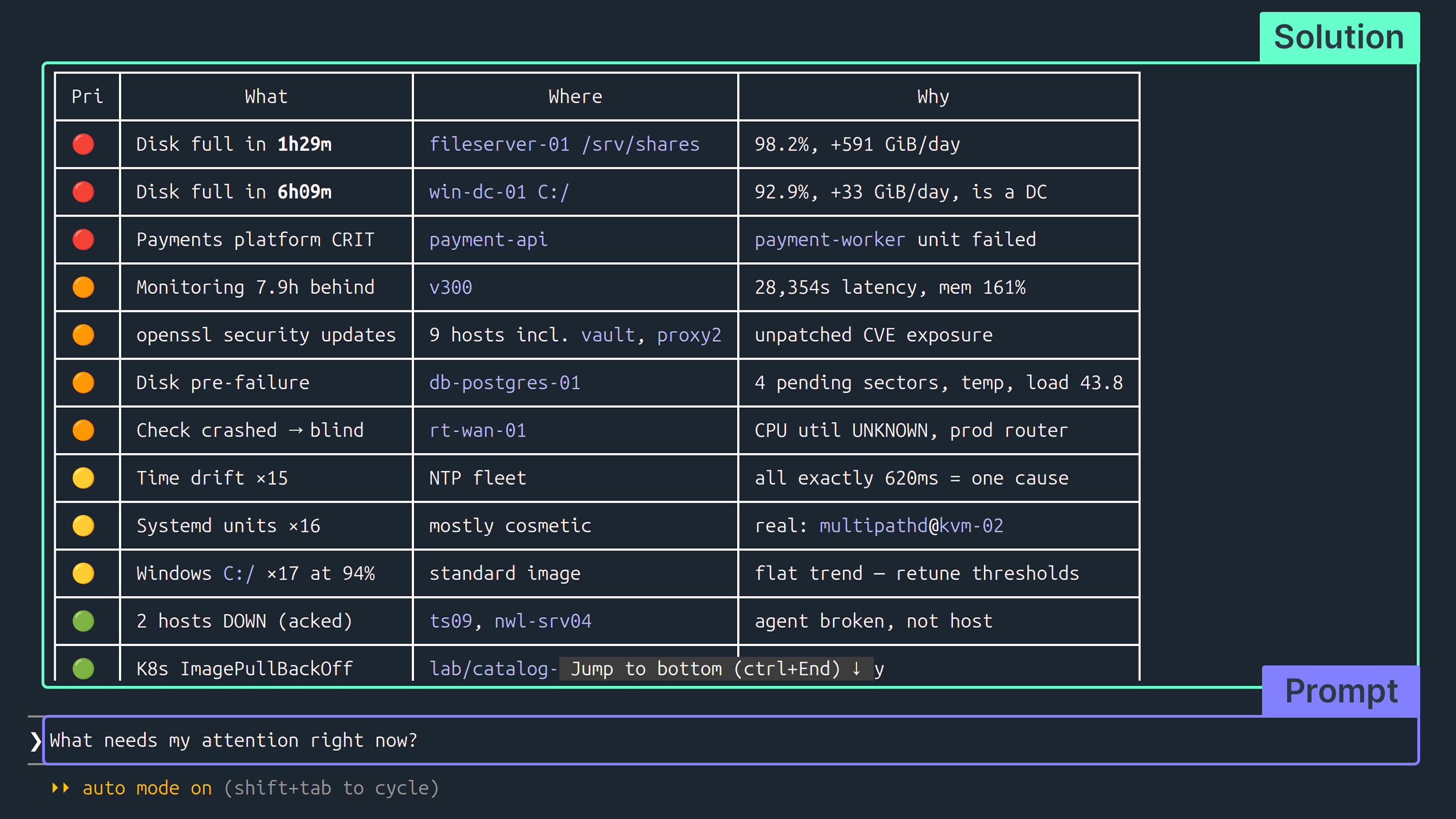
Put maintenance windows and changes into context: The AI puts alerts into the context of maintenance windows and preceding changes. For example, it can check whether a downtime was active when an alert occurred or whether a configuration change was made shortly beforehand. This helps you quickly determine whether an alert is related to scheduled maintenance or a preceding change.
Prompt example: “Check whether a setup change was activated in the Linux/Production folder during the hour before the CPU warnings started.”
Beyond these use cases, the open, model-independent MCP approach can be used to build custom AI agents and AI-powered workflows based on Checkmk data.
AI in action: 89 issues, one root cause
To evaluate the MCP server under real-world conditions, we deployed it in an environment with 603 hosts and 12,383 services.
The incident: The Payments API goes down, preventing customers from completing checkout. At this point, the underlying problem has already been present for six minutes. The dashboard shows 89 open issues.
The prompt: “The Payments API is reporting errors. Find the root cause.”
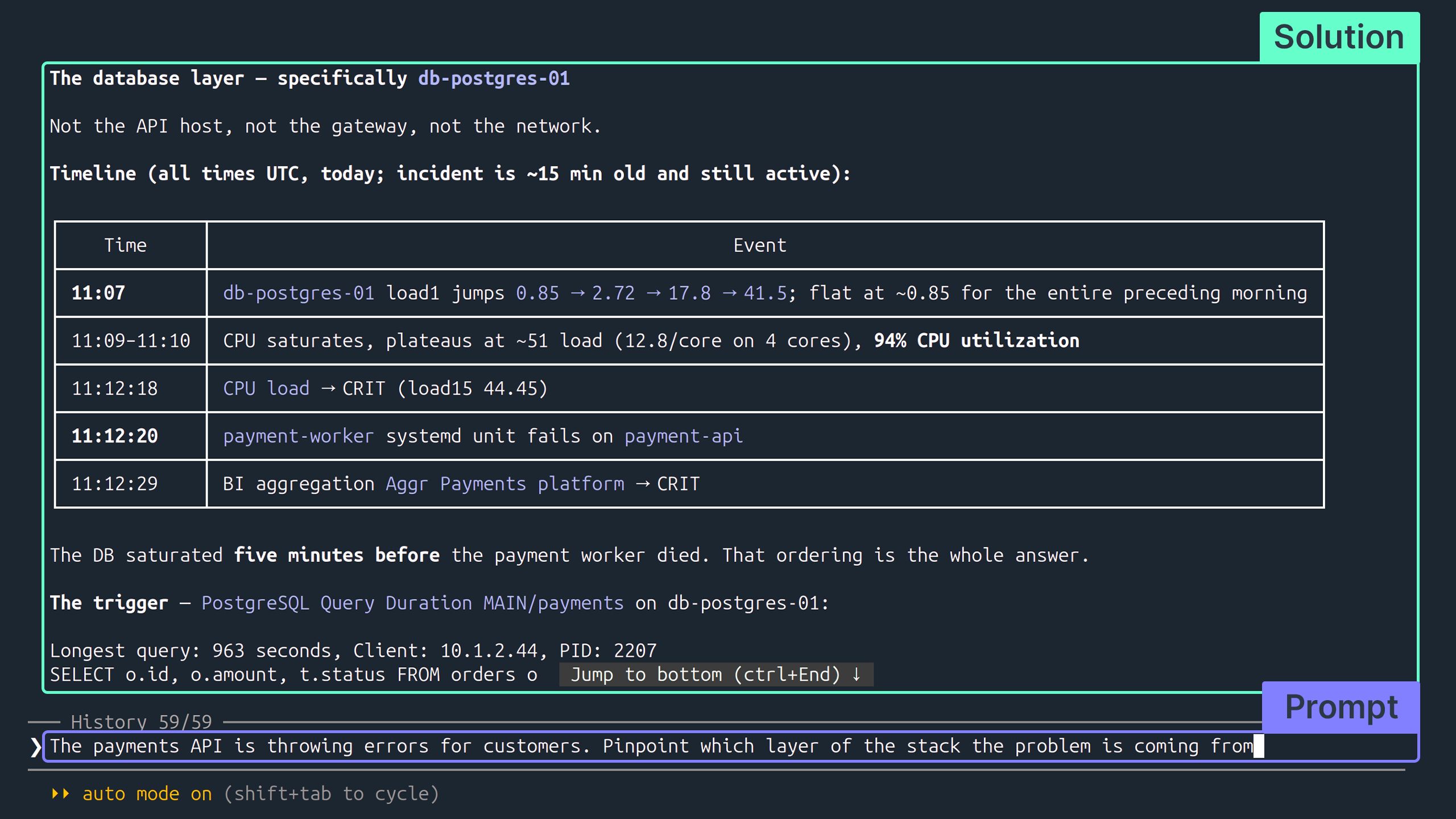
The RCA: Within seconds, the AI groups the 89 individual alerts into 46 clusters. It identifies that the errors affecting the Payments API, Checkout Worker, cache, mail delivery, and file share are not independent problems but symptoms of the same underlying issue. The remaining 45 clusters turn out to be irrelevant noise.
The root cause: a failing disk in the primary payment database. On its own, the database does not provide a clear indication at this point because its internal hardware diagnostics have not yet triggered an alert. Only by correlating symptoms across multiple services does the underlying cause become visible.
The benefit: Without AI assistance, the team would have had to manually compare dashboards, dig through logs, and reconstruct the chronology of all 89 alerts. This is where the MCP server makes a difference: instead of investigating individual symptoms one by one, the AI correlates distributed signals and gets you from dozens of alerts to the actual root cause much faster.
Now it’s your turn: test it and share your feedback
The new MCP server is initially available as an experimental release in the Pro, Ultimate/MT, and Cloud editions. You can connect your preferred AI to Checkmk and test the MCP server with your own ad hoc questions.
You can set it up in four easy steps:
-
Update: Update your Checkmk site to release version 2.5.0p13.
-
Enable the server: Under Setup → General → Global settings → Site management, enable the option ‘Enable MCP server’ and apply the changes.
-
Connect your client: Connect Checkmk to your AI client (for example, add the MCP server to Claude Code ) and enter your instance’s MCP URL.
-
Authenticate: Start the client, run /mcp, and complete authentication through a browser login using OAuth.
For detailed instructions and prompt examples, see our step-by-step guide in the Knowledge Base.
Try the MCP server and share your experience with us in the Checkmk Forum. Your feedback directly contributes to the further development of AI in Checkmk.